Google constantly scans and indexes pages across the internet. This includes LinkedIn profiles. As a result, many LinkedIn profiles are readily available through Google searches. While LinkedIn has its own search engine, it sometimes falls short for advanced or bulk searches. This is where Google becomes a powerful tool for finding specific LinkedIn profiles.
In this article, you will learn how to effectively use Google to search for LinkedIn profiles. We will also explore how to employ Boolean search techniques to build highly targeted lead lists. Whether you're a recruiter, salesperson, marketer, or simply looking to expand your professional network, mastering these Google search strategies for LinkedIn profile search is invaluable.
Before diving in, consider this: LinkedIn boasts over 830 million members worldwide (Source: LinkedIn Official Statistics). This vast professional network offers immense opportunities. However, finding the right profiles efficiently is crucial for networking, sales, and recruitment success. This article provides actionable strategies to leverage Google for a targeted LinkedIn profile search, helping you cut through the noise and connect with the right professionals.
How to Find LinkedIn Profile URLs on Google
To instruct Google to search specifically for LinkedIn profile URLs, you only need to use a simple operator: the "site" command. This powerful command limits your search results to a specific website or domain.
Start by typing "site:linkedin.com/in/" into the Google search bar. The "/in/" part is crucial because it specifically targets individual LinkedIn profile pages, distinguishing them from company pages or other LinkedIn content.

When you use this operator, your search results will primarily display LinkedIn profiles. You'll notice that each result typically includes:
- The profile URL
- The full name of the individual
- Their current job title or company name
Google often selects either the job title or the company name to display in the search result title. This can sometimes be random. While having the job title is helpful, it won't always appear prominently unless you use another specific Google operator: "intitle".

Refining Your Search with Google Operators
To make your LinkedIn profile search even more precise, combine the "site:" operator with keywords and other advanced Google commands. This technique is often referred to as a Google X-ray search, as it allows you to "see into" a specific website's indexed content.
For instance, if you're looking for a "Sales Manager," you can type: site:linkedin.com/in/ "Sales Manager". The quotation marks ensure that Google searches for the exact phrase "Sales Manager."

The "intitle:" operator is particularly useful when you want to ensure a specific keyword appears in the title of the search result. For example, "site:linkedin.com/in/ intitle:sales" aims to find profiles where "sales" is part of the title Google displays.
It's important to remember that Google's algorithms are constantly evolving. While the "intitle" operator is generally effective, it's not foolproof. Google may prioritize other factors, such as the overall relevance of the page to your search query. To improve accuracy, try combining "intitle" with other relevant keywords related to the specific role you're targeting. This helps Google better understand your search intent and deliver more relevant results for your LinkedIn profile search.

Even if "sales" doesn't appear directly in the Google search result title, don't be concerned. When you open the LinkedIn page, you will often find that the person's job title or description includes the word "sales." This happens because Google indexes the entire page content, not just the visible title in the search results.
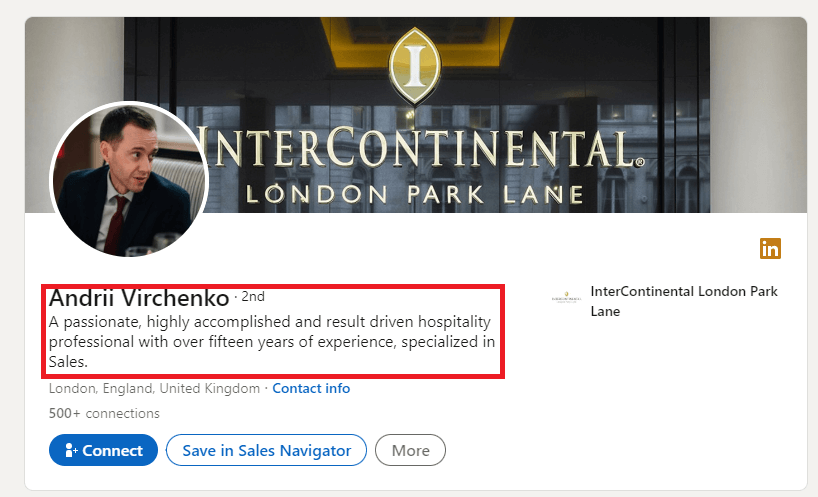
While the "intitle" filter might sometimes show company names instead of job titles, it significantly enhances the likelihood of job titles appearing in your search results. It's a powerful way to focus your search on specific roles.
Now that you understand the fundamentals of using Google for LinkedIn profile search, let's advance to the next level with Boolean search techniques.
Utilize Google's Boolean Search to Find LinkedIn Profiles
Boolean search is a highly effective method for refining your Google searches, allowing you to create complex queries to pinpoint very specific LinkedIn profiles. It's like a simple programming language that uses logical connectors and punctuation to combine or exclude keywords.
Here's how Boolean operators work:
- AND: Use this to search for multiple keywords that must all appear in the results. For example, "marketing AND manager" will find profiles containing both terms.
- OR: Use this to search for at least one keyword from a list. For example, "(sales OR marketing)" will find profiles containing either "sales" or "marketing."
- NOT (or -): Use this to omit a specific keyword from your results. For example, "manager NOT assistant" will exclude profiles with "assistant" in their title or description.
- Parentheses (): Use these to group multiple Boolean operators and control the order of operations, just like in mathematics. This is essential for building complex, precise queries.
Let's look at a specific example. Imagine you are looking for a Manager of Sales and Marketing in the Design industry.
There are two primary ways to construct this query using Boolean search:
site:linkedin.com/in/ ("Manager of Sales" OR "Manager of Marketing") AND Design
Or, a slightly different structure:
site:linkedin.com/in/ Manager AND (Sales OR Marketing) AND Design
Let's try the second example with Google search to see the results.

As expected, the search results will show profiles with variations like:
- Manager of Sales
- Manager of Marketing
- Manager of Marketing and Sales
When you access one of these profiles, you'll find that the keyword "design" appears on the page, confirming the effectiveness of your Boolean query.

Advanced Boolean Combinations for Targeted Searches
To further refine your Boolean search LinkedIn on Google, consider adding location-based keywords or targeting specific company names. For instance:
site:linkedin.com/in/ intitle:Manager AND (Sales OR Marketing) (Design OR Fashion) "New York"
This query will narrow your search to managers in sales or marketing roles within the design or fashion industries, specifically located in New York. Experiment with different location keywords (e.g., "London," "California," "APAC") to target specific geographic areas for your Google LinkedIn search. You can also add company names like "Google" or "Microsoft" to find employees at specific organizations.
Another powerful combination:
site:linkedin.com/in/ intitle:"Software Engineer" AND (Java OR Python) NOT "intern" "San Francisco Bay Area"
This query targets Software Engineers with Java or Python skills, excludes interns, and limits the search to the San Francisco Bay Area. This level of granularity makes Google an incredibly powerful Google profile finder.
Keep in mind that if your keywords are available, they will often be emphasized in the meta description (the short summary text) displayed in Google's search results. This provides a quick visual cue to the relevance of a profile.

Congratulations! You are now a master at using Google to find LinkedIn profiles. The first step is to have this list within your direct line of sight. But wouldn't it be preferable to compile all of these URLs, and potentially other data, into a structured format like a CSV file? That is the topic of the following section.
How to Extract Your Google Search Results
If you're reading this, you might be a marketer, salesperson, or recruiter looking to leverage these LinkedIn profiles for lead generation, recruitment, or networking. In such situations, converting the Google search results, especially the LinkedIn URLs, into a CSV file is essential before importing them into your CRM, cold outreach application, or recruitment software.
While this article primarily discusses using Google to search for people on LinkedIn, it's worth noting the capabilities of LinkedIn's own search function. LinkedIn allows you to search for people on LinkedIn using various filters, such as name, title, company, location, and industry. However, LinkedIn's search has limitations, particularly for advanced filtering and bulk data extraction. That's where Google's search operators, as described earlier, can provide a valuable alternative. Combining Google's power with LinkedIn's vast database allows for more targeted and efficient searches. Remember to always respect LinkedIn's terms of service and privacy guidelines when using any search method.
For those seeking to automate the process of extracting LinkedIn profile data, a site scraper can be an invaluable tool. A site scraper, like Scrupp, automates the extraction of data from web pages, saving significant time and effort compared to manual copying and pasting. When choosing a site scraper for LinkedIn, consider factors such as ease of use, the ability to handle complex page structures, and the option to export data in a usable format like CSV. Keep in mind that LinkedIn has measures in place to prevent scraping, so select a tool that can bypass these restrictions effectively and ethically. Scrupp is designed to do just that, offering efficient and reliable data extraction capabilities for your LinkedIn profile searcher needs.
According to a recent study, businesses that leverage data scraping tools for lead generation experience a 40% increase in qualified leads (Source: Salesforce Research). Scrupp provides a user-friendly interface and robust features to extract valuable data from LinkedIn profiles, including verified email addresses, job titles, and company information. This allows you to build targeted lead lists and streamline your outreach efforts, making it an essential tool for sales and marketing professionals looking to enhance their LinkedIn profile search capabilities.
The LinkedIn icon is a ubiquitous symbol in the professional world, representing a gateway to networking and career opportunities. You'll often encounter the LinkedIn icon on websites, email signatures, and business cards, serving as a direct link to an individual's or company's LinkedIn profile. Clicking on the LinkedIn icon typically redirects you to the corresponding LinkedIn page, allowing you to connect with professionals, explore job opportunities, or learn more about a company. Recognizing and utilizing the LinkedIn icon is essential for navigating the online professional landscape and expanding your network.
Using a SERP Scraper for Google Results
To extract Google search results into a structured format, you can use a SERP (Search Engine Results Page) scraper. Scaleserp is one such tool. Here’s a general workflow:
- Create an account: Sign up for Scaleserp or a similar SERP scraping service.
- Input your Google search URL: Copy and paste the full URL of your Google search results page (the one with all your Boolean operators) into the tool's designated URL area.
- Specify extraction parameters: Define the number of pages you want to extract and the amount of findings per page.
- Adjust Google search settings (if needed): The number of Google results displayed per page is determined by your personal search settings. You can edit this by going to Google.com > Settings > Search Settings.
- Change results per page: Alter the number of search results displayed per page (e.g., to 100), select Save, and then proceed.
- Define output format: Most users will require a CSV file, so choose that option from the selection.
- Download results: Once the results are ready, you can save them by pressing the download link, typically found in the upper right corner.


As a result, you'll get a clean CSV file containing the search result titles and the LinkedIn URLs. This file can then be easily imported into your CRM software or your preferred cold outreach program.

In terms of limitations, Google scraping itself is generally unrestricted, but the effectiveness and scale depend on your choice of tool. For large-scale data extraction, you might need to subscribe to a service that handles IP rotation and other technical challenges on your behalf.
While Scaleserp is a specific tool for this purpose, several other services and methods can help you extract Google search results into a structured format. These include general SERP (Search Engine Results Page) scraping APIs like Bright Data, Oxylabs, or ProxyCrawl, which offer more robust and scalable solutions for extracting large volumes of data. For simpler, one-off extractions, browser extensions designed to export search results or even basic spreadsheet functions combined with manual copying can be used, though these are less efficient for large datasets. Always consider the volume of data you need and the frequency of extraction when choosing the right tool.
For those looking to automate the process of extracting LinkedIn profile data, a scrape chrome extension can be a valuable tool. These extensions are designed to automatically gather information from LinkedIn profiles and export it into a structured format, such as a CSV file. However, it's crucial to choose a reputable scrape chrome extension and be aware of LinkedIn's terms of service, which prohibit unauthorized scraping. Scrupp, for example, is a powerful tool that integrates with LinkedIn and LinkedIn Sales Navigator to help users efficiently extract valuable profile and company information, including verified email addresses, to streamline their networking, sales, and marketing efforts. Always prioritize ethical data collection practices when using any scraping tool.
Google's Restrictions for Searching LinkedIn Profiles
While Google X-ray search is incredibly powerful for finding LinkedIn profiles, its primary limitation lies in its filtering capabilities. Google search, even with advanced Boolean operators, cannot filter results based on specific LinkedIn-native criteria.
Although Boolean search and operators are available, they cannot be used to filter results based on particular criteria like company size, industry, years of experience, seniority level, or specific groups. These granular filters are crucial for highly targeted lead generation and recruitment.
For example, you cannot ask Google to find "Marketing Managers in companies with 50-200 employees in the tech industry with 5-10 years of experience." This level of detail is simply beyond Google's indexing capabilities for LinkedIn profiles.
The LinkedIn Sales Navigator is the best solution available if you want to create highly qualified lead lists and obtain the LinkedIn URLs of potential customers with these advanced filters. Sales Navigator offers a comprehensive suite of filters that allow you to pinpoint your ideal prospects with unparalleled accuracy.
Scrupp collects a lot of intriguing information, including the company website; the industry; the firm specialties; the number of connections; and much more. To ensure that the list of LinkedIn profiles is clean, we additionally atomically change the sales navigator URLs into LinkedIn URLs.
Combining Google X-Ray with LinkedIn Sales Navigator
For the most comprehensive and accurate lead generation, a hybrid approach often works best: combining Google X-ray search with LinkedIn Sales Navigator. You can use Google to cast a wide net and identify potential profiles based on publicly indexed keywords, then use Sales Navigator to apply advanced filters and verify the quality of those leads. Tools like Scrupp can then help bridge the gap by extracting data from both sources and cleaning it for your outreach efforts.
Comparing LinkedIn Profile Search and Extraction Methods
Choosing the right method for finding and extracting LinkedIn profiles depends on your specific needs, budget, and technical comfort. Here's a comparison of the approaches discussed:
| Method | Best For | Pros | Cons | Data Extraction |
|---|---|---|---|---|
| Google X-Ray Search | Broad, targeted searches for publicly indexed profiles, bypassing LinkedIn's internal search limitations. | Free, powerful for specific keywords and roles, good for initial discovery. | Limited filtering (e.g., company size, seniority, specific skills), results can be inconsistent, manual extraction or basic scraping required. | Manual copy-paste or basic SERP scrapers. |
| LinkedIn Native Search (Free) | General networking, finding direct connections, basic job searches, exploring your immediate network. | User-friendly, built-in filters (connections, location), respects privacy settings, no cost. | Very limited for advanced lead generation, strict search limits for free users, cannot extract data in bulk. | No bulk extraction, manual profile viewing. |
| LinkedIn Sales Navigator (Paid) | Advanced lead generation, highly targeted prospecting, account-based marketing, building precise lead lists. | Extensive filtering options (industry, company size, seniority, tenure, skills), lead recommendations, CRM integration capabilities. | Paid subscription, still no bulk data export directly, designed for manual outreach and engagement. | No direct bulk extraction, requires manual data transfer or integration with other tools/APIs. |
| Dedicated Scraping Tools (e.g., Scrupp) | Automated bulk data extraction, building large lead lists, enriching existing data, streamlining outreach. | Automates data collection, extracts specific fields (emails, job titles, company info), integrates with CRMs and Sales Navigator, saves significant time. | Can be paid, requires understanding of ethical scraping and LinkedIn's Terms of Service, potential for IP blocking if not used carefully. | Automated bulk CSV/API export. |
Conclusion
Google X-ray searches of LinkedIn profiles are a highly useful method for getting around the search limits on LinkedIn's free platform and for quickly generating qualified lead lists. By mastering Google's advanced search operators like site:, intitle:, and Boolean logic (AND, OR, NOT), you can pinpoint specific professionals and roles with remarkable precision. This approach transforms Google into a powerful Google profile finder and a valuable asset for any professional seeking to expand their network or find new opportunities.
While using Google to find LinkedIn profiles is effective, sometimes you might want to discover a profile from an email address you already have. Unfortunately, Google itself won't directly reveal a LinkedIn profile based solely on an email due to privacy settings. However, there are alternative methods. You can try searching the email address directly on LinkedIn's search bar, although this may not always yield results. Another approach is to use a people search engine or a social media lookup tool that specializes in finding profiles associated with specific email addresses. Remember to be mindful of privacy and data protection regulations when using such tools. Tools like Scrupp can help you verify email addresses associated with LinkedIn profiles you find through Google, ensuring you're contacting the right people with accurate information. This is especially useful for a LinkedIn profile searcher.
Similarly, finding profiles linked to phone number directly through Google can be challenging due to privacy concerns. Google prioritizes indexing web pages, and phone numbers are not always explicitly listed on LinkedIn profiles in a way that Google can easily associate them. However, you can use a combination of advanced search techniques and tools to increase your chances of success. Start by using the 'site:linkedin.com' operator along with the phone number in various formats (e.g., 'site:linkedin.com (123) 456-7890'). If the phone number is publicly available on the profile or associated with a LinkedIn post, it might appear in the search results. Tools like Scrupp can help you gather contact information from profiles once you've located them, streamlining your outreach efforts.
For more comprehensive and efficient data extraction, especially when you need to get data from LinkedIn in bulk or with advanced filtering, consider dedicated tools designed for this purpose. These tools can help you get data from LinkedIn more effectively. Scrupp, for example, offers seamless integration with LinkedIn and Sales Navigator, allowing you to extract a wealth of information, including verified email addresses, company details, and more. These tools often provide advanced filtering and automation capabilities that go beyond what's possible with Google alone. Remember to always comply with LinkedIn's terms of service and respect user privacy when scraping data.
The techniques described in this article are essentially a form of LinkedIn x-ray search, allowing you to peer into LinkedIn's database using Google's search engine. This method is particularly useful for uncovering profiles that might be difficult to find using LinkedIn's native search functionality. While LinkedIn x-ray search through Google is a powerful tool, it has limitations, especially when it comes to filtering by specific criteria like company size or industry. For more advanced filtering and data extraction, consider using tools like Scrupp, which are specifically designed to work with LinkedIn and Sales Navigator, providing a more comprehensive and efficient way to find and gather information on potential leads. Ultimately, the best strategy often involves a combination of Google X-ray search for initial discovery and specialized tools for advanced filtering and data extraction.
How useful was this post?
Click on a star to rate it.